Client Portal Mobile App
The Client Portal Mobile App enables customers (Sellers) to manage and monitor their shipping operations directly from their mobile devices.
The application allows customers to track shipments, Pick Up requests, statistics, and customer service requests, as well as create new shipments and Pick Up requests and monitor shipment statuses.
1. Login
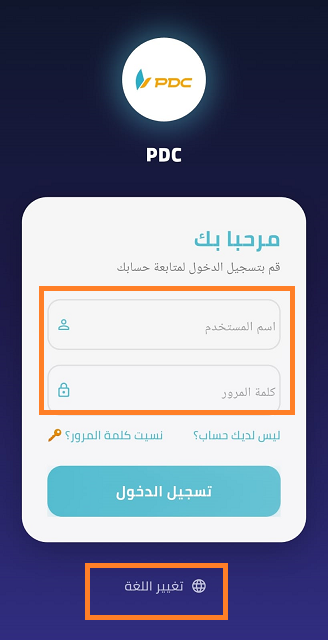
When the application is opened, the company name and logo are displayed, followed by the login screen.
The customer enters:
- Username
- Password
Then clicks Login to access the application.
The application also supports switching between:
- Arabic
- English
2. Forgot Password
If the customer forgets their password, they can click Forgot Password.
How to Reset the Password:
-
Enter the Account Number.
The account number can be obtained by contacting the shipping company's customer service team.
-
Enter the Username.
-
Enter the registered phone number.
-
Click Submit Request.
The system sends a password reset request to the shipping company, allowing the company's staff to review the request and provide the customer with a new password.
3. Create a New Account
For new customers who do not have an account, they can click Don't Have an Account? to submit a new registration request.
The customer enters the required information, including:
- Company Name
- Address
- Contact Person Name
- Phone Number
- Email Address
- Expected Monthly Shipment Volume
Then clicks Submit Registration Request.
The registration request appears to the operations team in the Customer Definition screen, where the employee can:
- Activate the customer's account.
- Create a Username and Password for the customer.
- Provide the login credentials to the customer so they can start using the application.
4. Home Page (Dashboard)
After logging in, the customer is directed to the Dashboard, which provides an overview of their shipment activity.
Shipments are displayed in Cards, with each card showing the number of shipments in a specific status.
When the customer clicks on any card, the application displays the shipments associated with that status.
Shipment information includes:
- Shipment Number.
- Shipment details.
- Shipment Status.
- Recipient information.
- Delivery details.
- The assigned courier when the shipment is Out for Delivery.
5. Shipment Details
When the customer clicks on a shipment, a detailed page displays all information related to that shipment.
Contact
When a phone number is displayed, the customer can click on it to open the phone application and make a call directly.
Cancel Shipment
The customer can cancel a shipment when its status is New Pick Up.
Create Reverse Shipment
The customer can create a Reverse Shipment from the shipment details when the shipment needs to be returned.
6. Shipment Notes
A Send Note button is available within the shipment details.
When clicked, the customer can enter and submit a note.
The note is sent to the system so that the operations team or courier can review it, helping communicate any special instructions or information related to the shipment.
7. Support Tickets and Chat
Customers can create a Support Ticket directly from the application for:
- Complaints.
- Suggestions.
- Inquiries.
- Requests that require assistance from the customer service team.
Once created, the ticket is received by the Customer Service team for review and processing.
The customer can also open a Chat with a customer service employee to communicate and follow up on the request more quickly.
8. Shipment Tracking
The application provides the ability to track all shipment stages through the Track Shipment option.
When selected, the application displays the Shipment History, including:
- All statuses the shipment has passed through.
- The date and time of each status.
- The reason for the status change, when available.
This allows customers to follow the shipment journey and identify the latest update recorded on the shipment.
9. New Request – Pick Up Request
The Home Page includes a New Request button that allows customers to create a new Pick Up Request.
How to Use:
- Click New Request.
- Enter the required Pick Up information.
- Review the entered data.
- Click Confirm & Submit Pick Up Request.
Once submitted, the request becomes available to the shipping company for processing and pickup execution.
10. Add Shipment
The Add Shipment button allows customers to create a new shipment directly from the application.
How to Use:
- Click Add Shipment.
- Enter the Shipper information.
- Enter the Consignee information.
- Enter the Shipment Details.
- Review the entered information.
- Click Save to create the shipment.
Once saved, the shipment is created in the system and becomes available to the customer for tracking.
11. Statistics
The application includes a Statistics screen that allows customers to monitor their shipment performance and analyze their operational results.
The screen displays:
- Number of shipments by status.
- Number of shipments by non-delivery reason.
- Percentage of each status.
- Performance indicators that help customers analyze delivery results.
This screen provides customers with a clear overview of their shipment performance and helps identify cases that may require review or improvement.
Benefits of the Client Portal Mobile App
The application allows customers to manage their shipping operations directly without having to contact the shipping company's employees for every request.
Customers can:
- Track shipments and their current statuses.
- Create new shipments.
- Create Pick Up requests.
- Monitor shipment performance through statistics.
- Communicate with customer service.
- Add notes and instructions to shipments.
- Review shipment history and status updates.
- Create reverse shipments.
- Cancel eligible Pick Up requests.
The Client Portal Mobile App provides customers with an integrated mobile solution for managing and monitoring their shipping operations and communicating with the shipping company directly from their mobile devices.