Manage Recipient Types
From the Recipient Categories screen, you can easily define, update, or remove the recipient types approved by your company. This ensures couriers accurately record who received the shipment according to company policy.
➕ Add a New Recipient Type
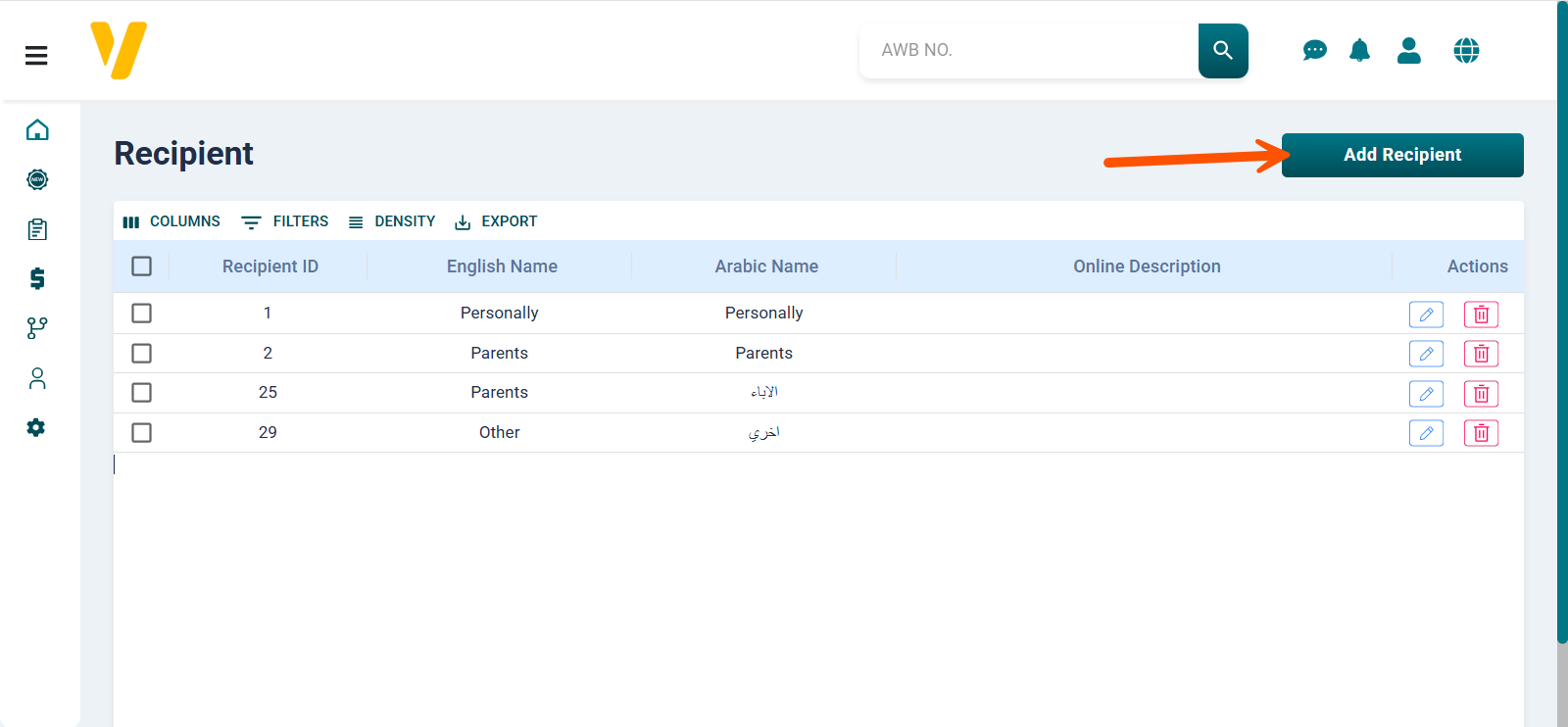
To add a new recipient type:
- Go to Settings → Recipient Categories.
- Click the Add Recipient button at the top of the screen.
- Fill in the following fields:
- Arabic Name
- English Name
- Notes (the description or notes that appear to the courier in the mobile app)
- Click Save to create the new recipient type.
🖊️ Edit an Existing Recipient Type
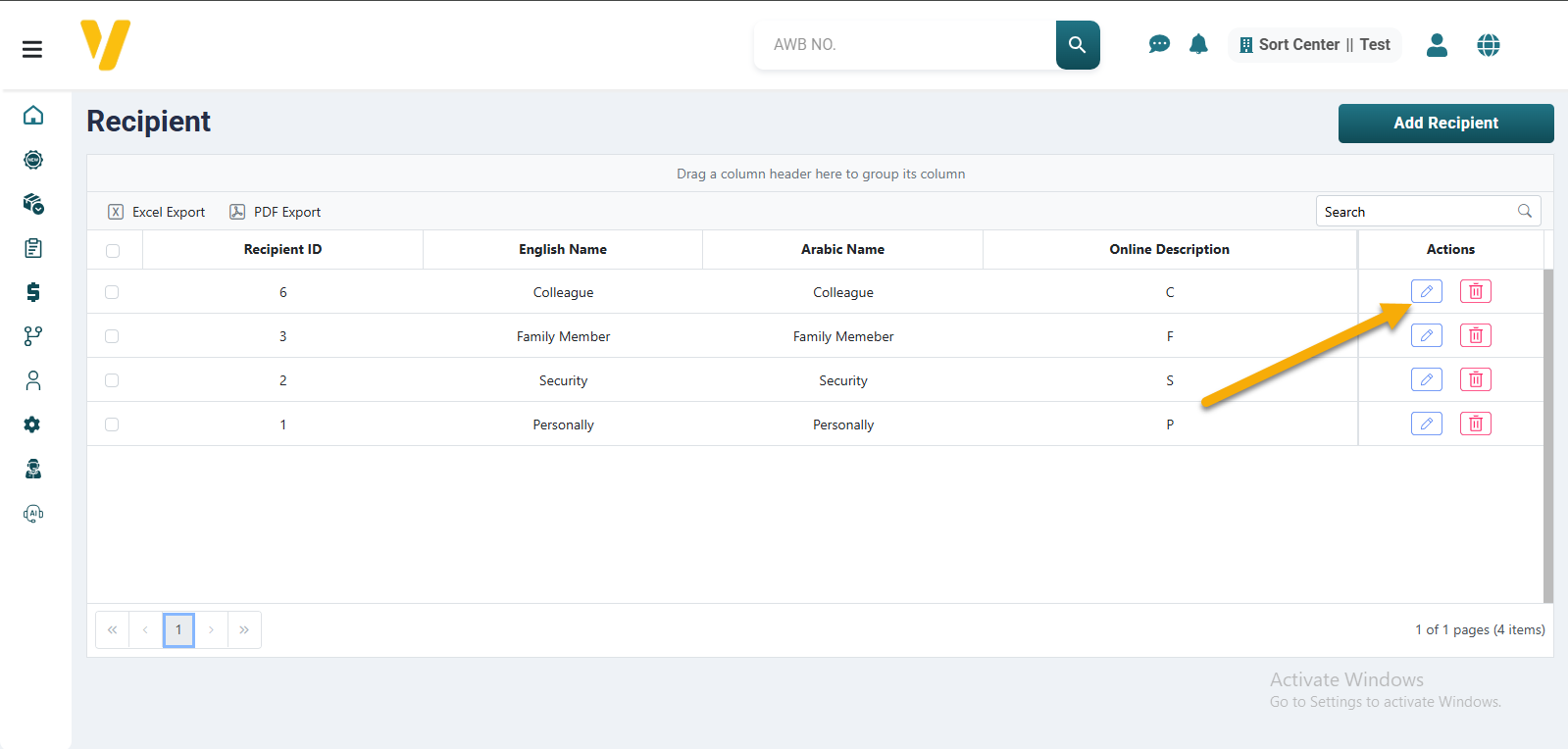
To edit an existing recipient type:
- Open the Recipient Categories screen.
- Locate the row of the recipient type you want to update.
- Click the Edit icon (🖉) in the Actions column.
- Update the required fields, then click Save.
🗑️ Delete a Recipient Type
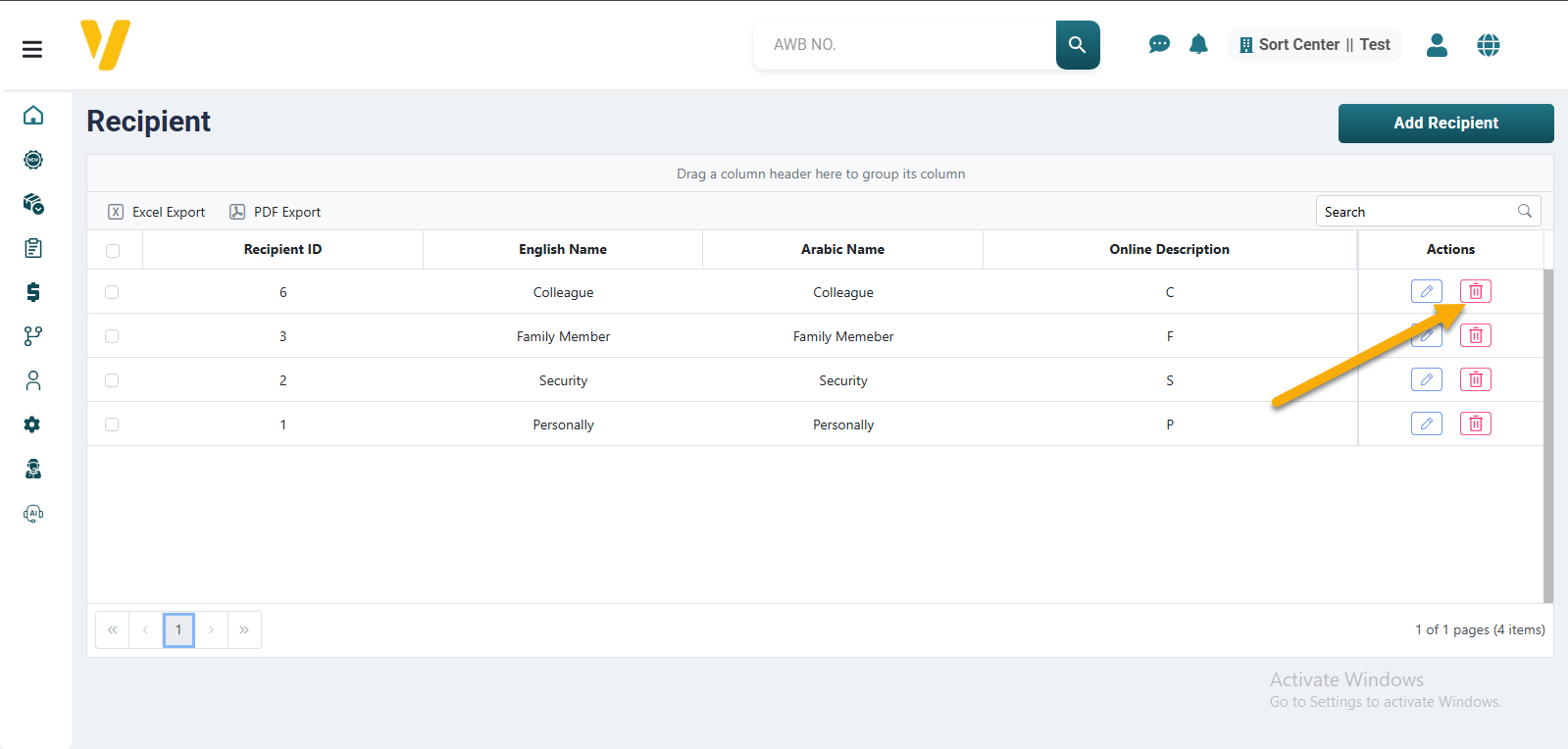
To delete a recipient type:
- From the Recipient Categories screen, find the type you want to remove.
- Click the Delete icon (🗑️) in the Actions column.
- Confirm the deletion when prompted.
⚠️ Note: Deleted types will no longer appear as delivery options for couriers.