Add Employee
- From the Employee Management page, click on the
Add Employeebutton. - Enter the required information, noting that some fields are mandatory while others are optional.
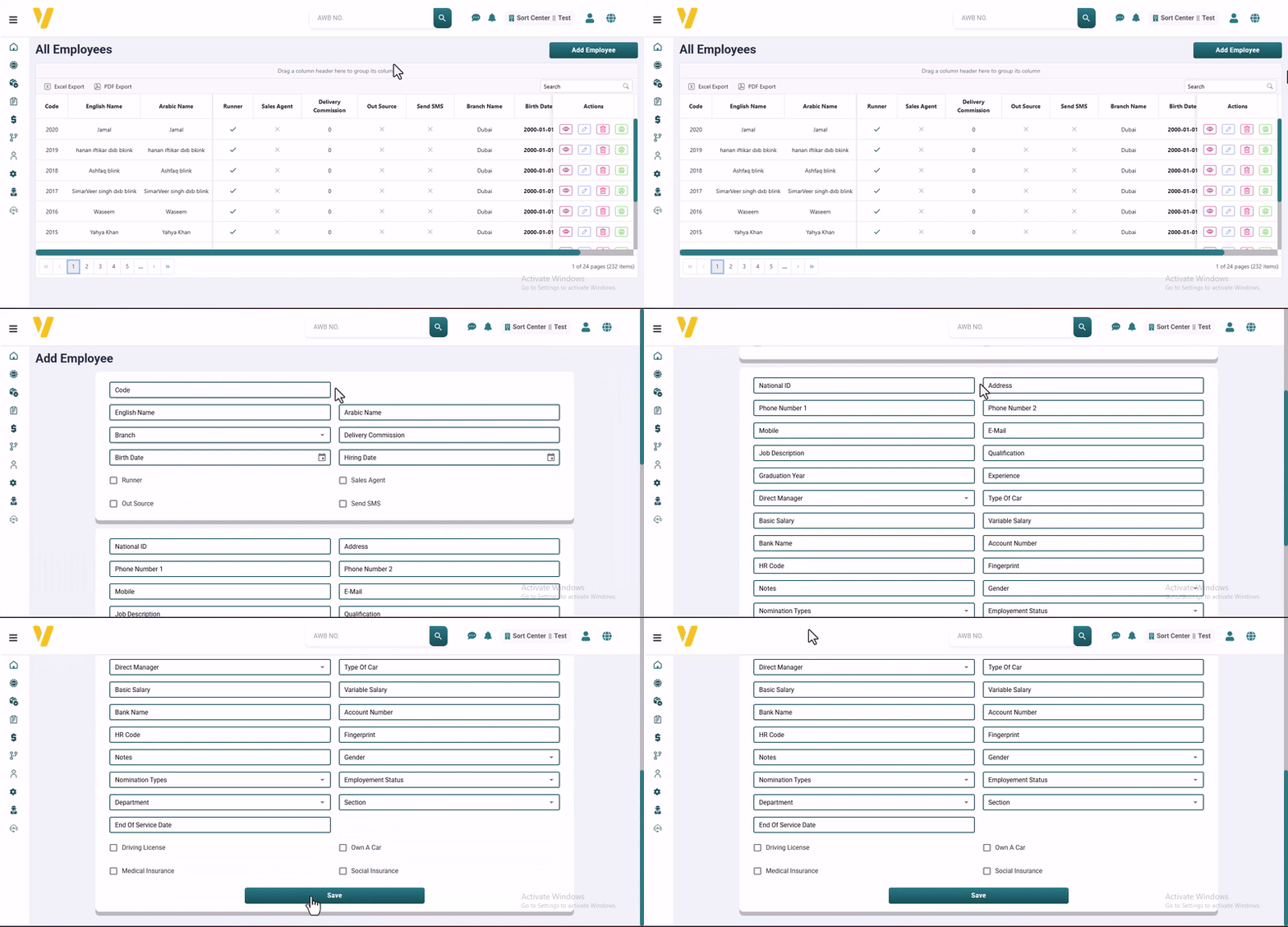
Required Information
-
Code
A unique code to identify the employee. -
English Name / Arabic Name
The employee’s full name in both English and Arabic for official records. -
Branch
The branch where the employee is assigned. -
Delivery Commission
Enter the delivery commission for this courier. -
Birth Date
The employee’s date of birth. -
Hiring Date
The official date when the employee joined the company. -
Runner / Sales Agent / Out Source
Flags to classify the employee’s role or outsourcing status. -
Send SMS
Specify whether the employee should send or receive SMS notifications. -
National ID
The employee’s national identification number. -
Address
The employee’s full residential address. -
Phone Number 1 / Phone Number 2 / Mobile
Contact numbers, both landline and mobile. -
E-Mail
Official or personal email address. -
Job Description
A brief description of the employee’s responsibilities. -
Qualification
The highest academic qualification obtained. -
Graduation Year
The year the employee graduated. -
Experience
A summary of previous job experience in years. -
Direct Manager
The name of the person the employee reports to. -
Type of Car
Type/model of the car the employee uses, if any. -
Basic Salary / Variable Salary
Fixed and variable salary components. -
Bank Name / Account Number
Bank details for salary transfers. -
HR Code
An internal reference code for HR. -
Fingerprint
Used in biometric attendance systems. -
Notes
Any additional comments or internal notes about the employee. -
Gender
Male or Female. -
Nomination Status
Select the hiring status of this employee. -
Employment Status
Indicates whether the employee is full-time, part-time, on leave, etc. -
Department / Section
The organizational unit the employee belongs to. -
End of Service Date
If applicable, indicates when the employee left the company. -
Driving License
Whether the employee has a valid driving license. -
Own a Car
Whether the employee owns a car. -
Medical Insurance / Social Insurance
Specify if the employee is covered by medical and/or social insurance.
Actions
After adding the employee, they will appear in the table with all their details. You will find Action Buttons for each record:
- 👁️ View: Display the full employee profile.
- ✏️ Edit: Make changes to any of the employee’s details.
- 🗑️ Delete: Permanently remove the employee record.