COD Management
Cash on Delivery (COD) is one of the available payment methods when creating a new shipment, where the shipment value is collected directly from the end customer upon delivery.
To track and receive these amounts from runners, you can use the dedicated COD Management screen, which makes it easy to follow up and manage collected funds.
Access
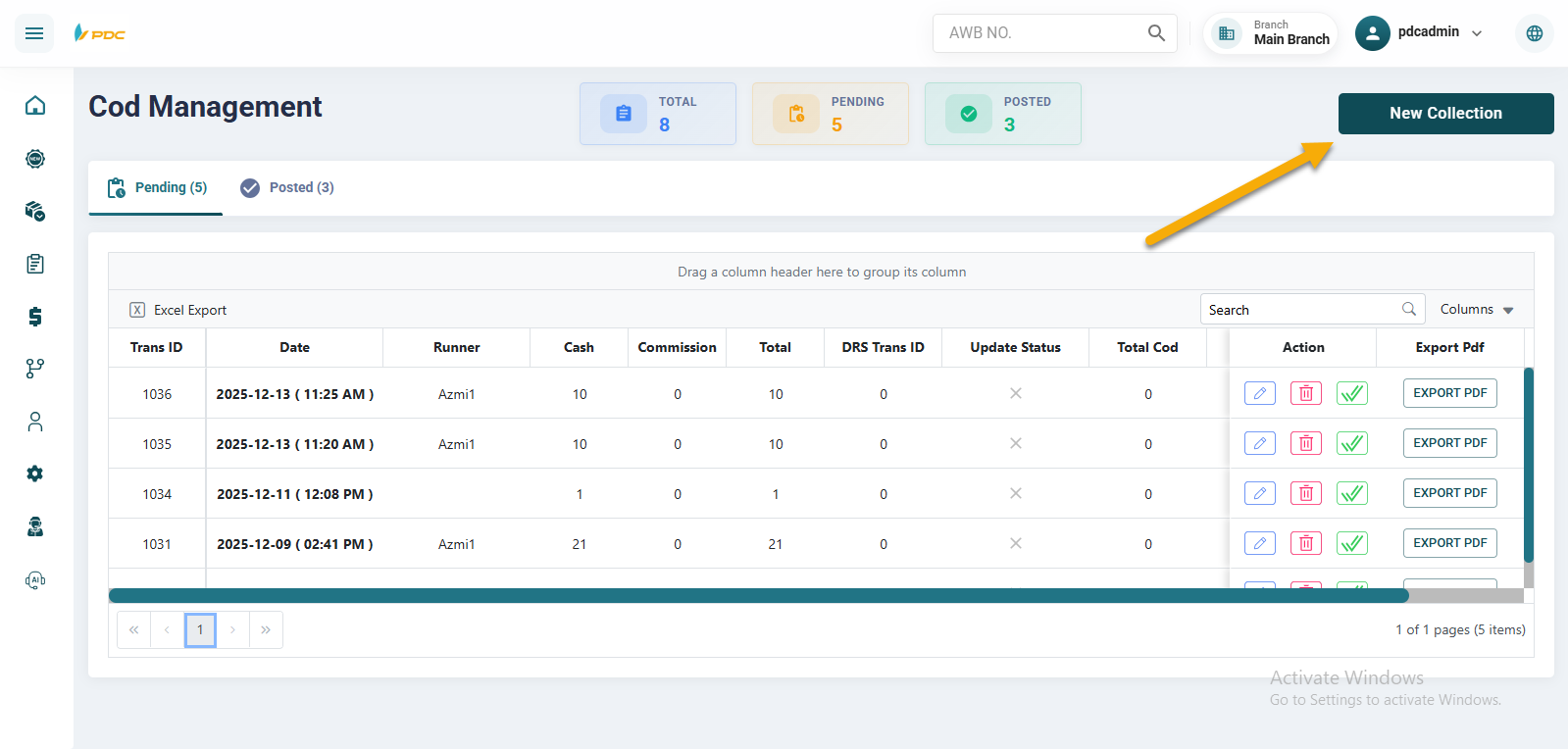
From the Finance menu, select COD Management.
Page Sections
The COD Management screen is divided into two main tables:
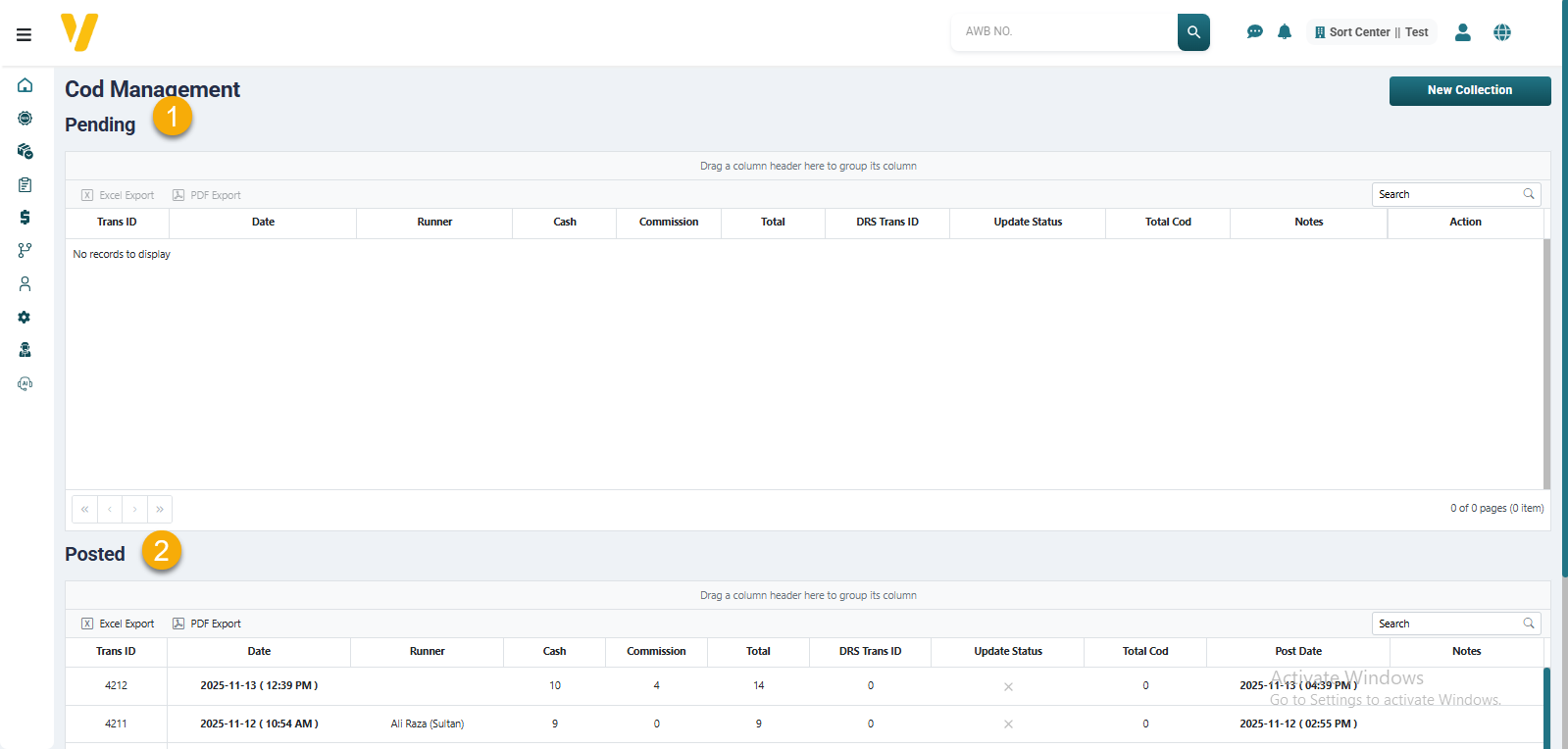
- Pending — Displays all COD collections still awaiting confirmation or posting.
- Posted — Displays COD collections that have already been confirmed and finalized.
Creating a New COD Collection
From the Finance menu, select COD Management, then click the New Collection button.
New Collection Options
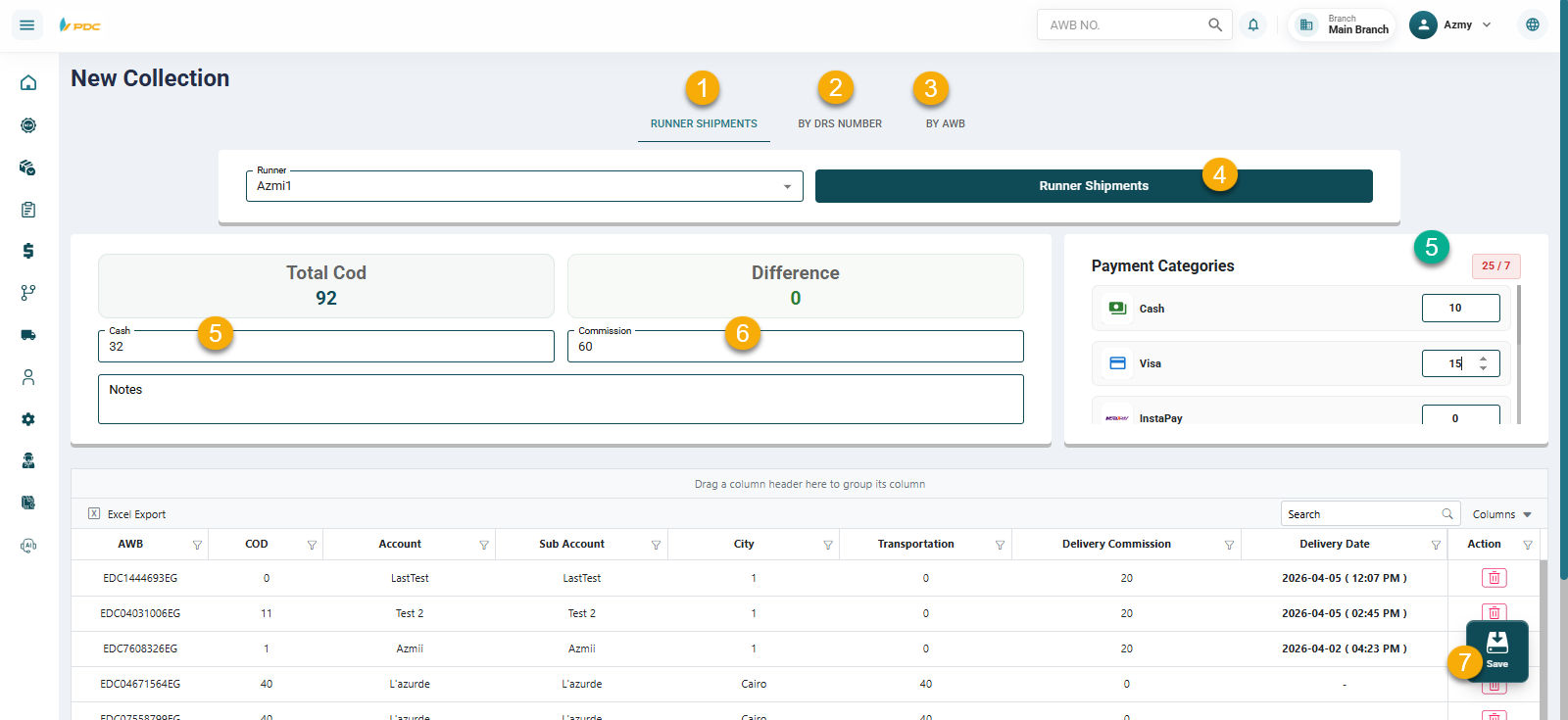
There are three methods for creating a new COD collection:
- Runner Shipments — Select a specific runner to view all shipments assigned to them.
- By DRS Number — Enter a DRS number to view all related shipments.
- By AWB — Search directly for one or more shipments using their AWB numbers.
Example: Collecting via Runner Shipments
- Choose Runner Shipments as the COD collection method.
- Select the Runner.
- Click the Runner Shipments button.
- All shipments delivered by the runner but not yet settled will appear.
- In the summary box, you’ll see the total collected amount (e.g., 7,777 EGP).
- The difference field is based on the runner’s commission (e.g., if the commission is 50 EGP, the difference after deduction will be displayed).
- Enter the amount to be collected from the runner in the Cash field.
- Click Save to record the new COD collection in the Pending table.
Payment Breakdown
The system allows you to split the collected amount into multiple payment methods to accurately categorize the amounts received from the courier.
Payment methods may include:
- Cash
- Visa
- Instapay
- E-Wallet
- Or any other payment method
This helps ensure accurate financial tracking by recording each payment method separately.
Confirming and Posting the Collection
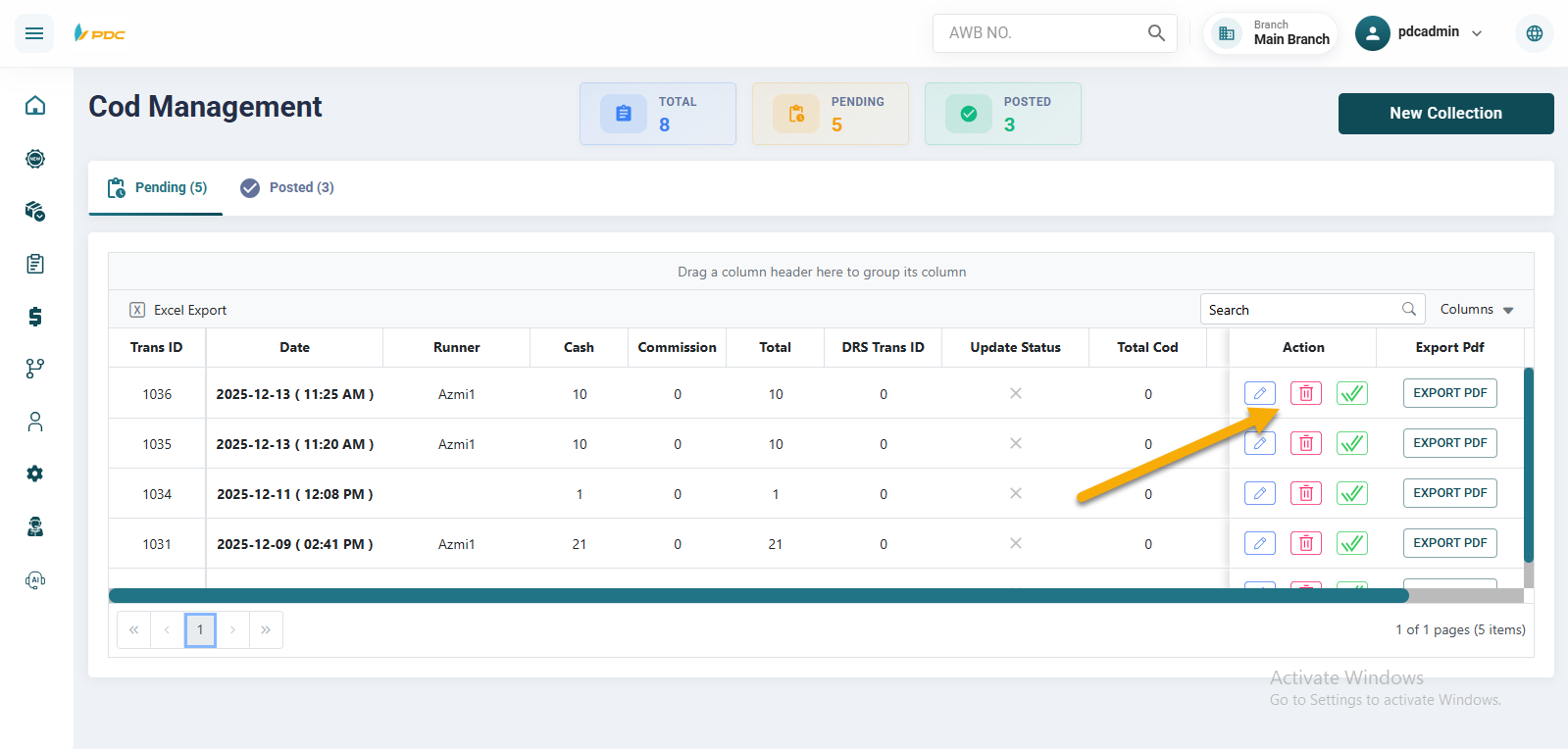
Once saved, you will be redirected to the COD Management screen. Find the latest entry in the Pending table, click the green action button in the Actions column, and select Post to finalize the process.
Note: Once posted, the collection moves from the Pending table to the Posted table, marking it as complete.
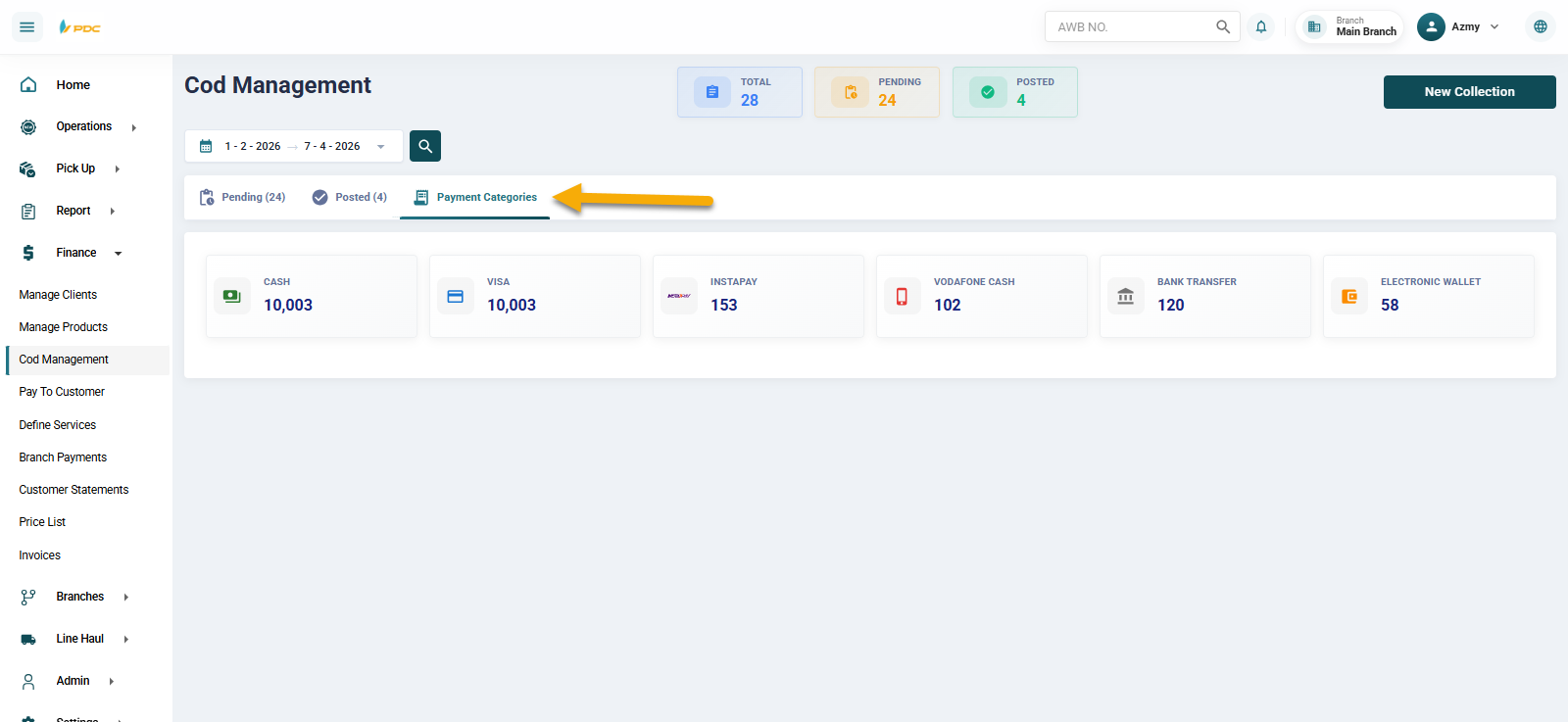
Payment Methods Review
The system also displays the payment methods recorded by the user خلال الفترة, making it easier to:
- Review transactions
- Verify collected amounts
- Perform end-of-day reconciliation efficiently