Price List
The Price List tab is used to create and manage customer price lists, where you can define detailed pricing based on the type of service — whether it’s shipping, additional weight, or any other services provided by the company.
Accessing the Page
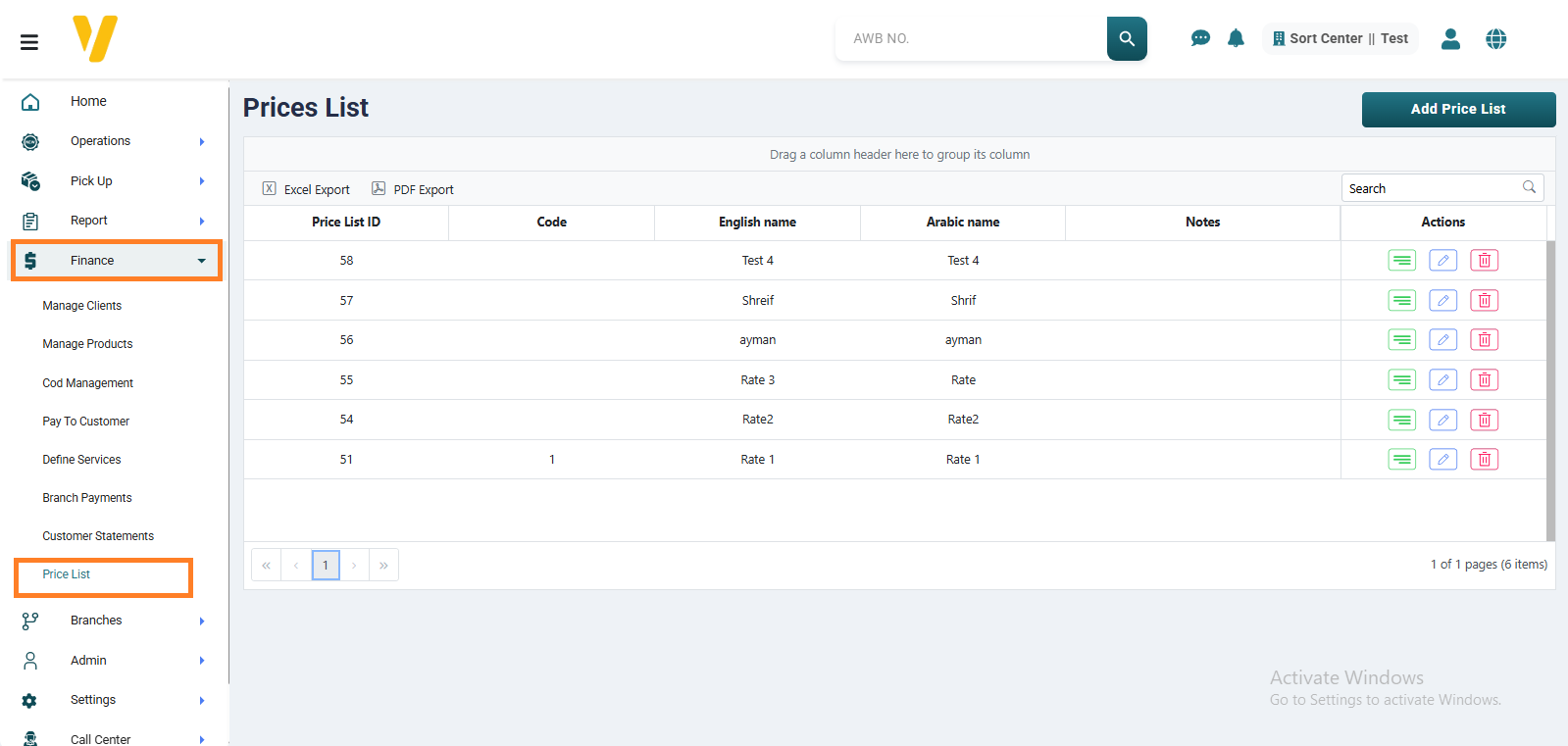
You can access the Price List page from the sidebar by navigating to Accounts → Price List.
Creating a New Price List
To add a new price list, click the Add Price List button, as shown in the image below.
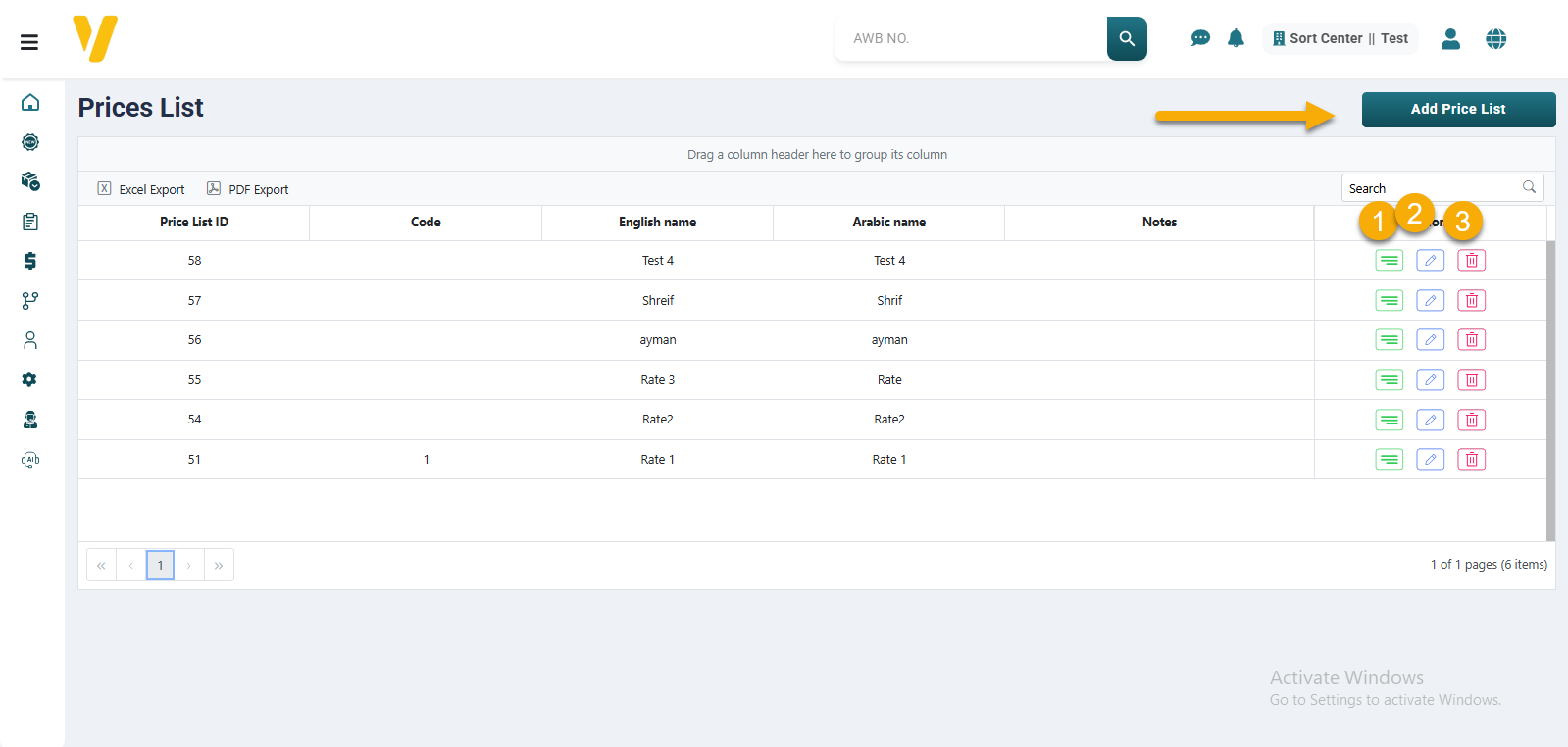
This page allows the user to:
1- Create a new price list to define different service rates. 2- Edit any existing price list. 3- Delete unused price lists.
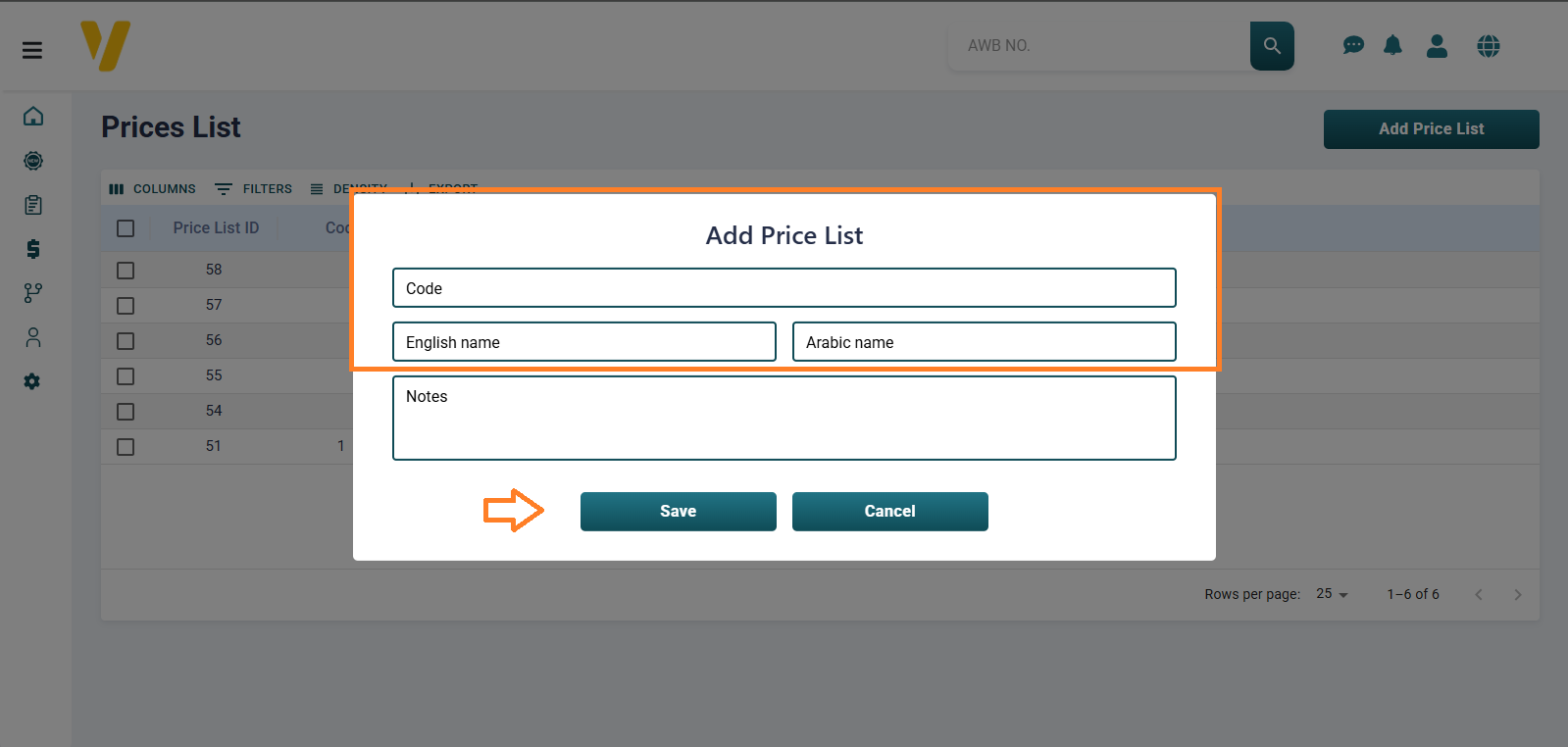
When you click the Add Price List button, a new page opens to enter the details of the new price list. This page contains several fields that must be filled out to successfully create the list. Enter the following data:
- Code: A unique identifier for the price list.
- English Name: The name of the list in English.
- Arabic Name: The name of the list in Arabic.
After entering the information, click Save to add the new price list to the system.
Price List Details
When you click the Details button on the Price Lists page, you will be redirected to a new page to select the service you want to set prices for.
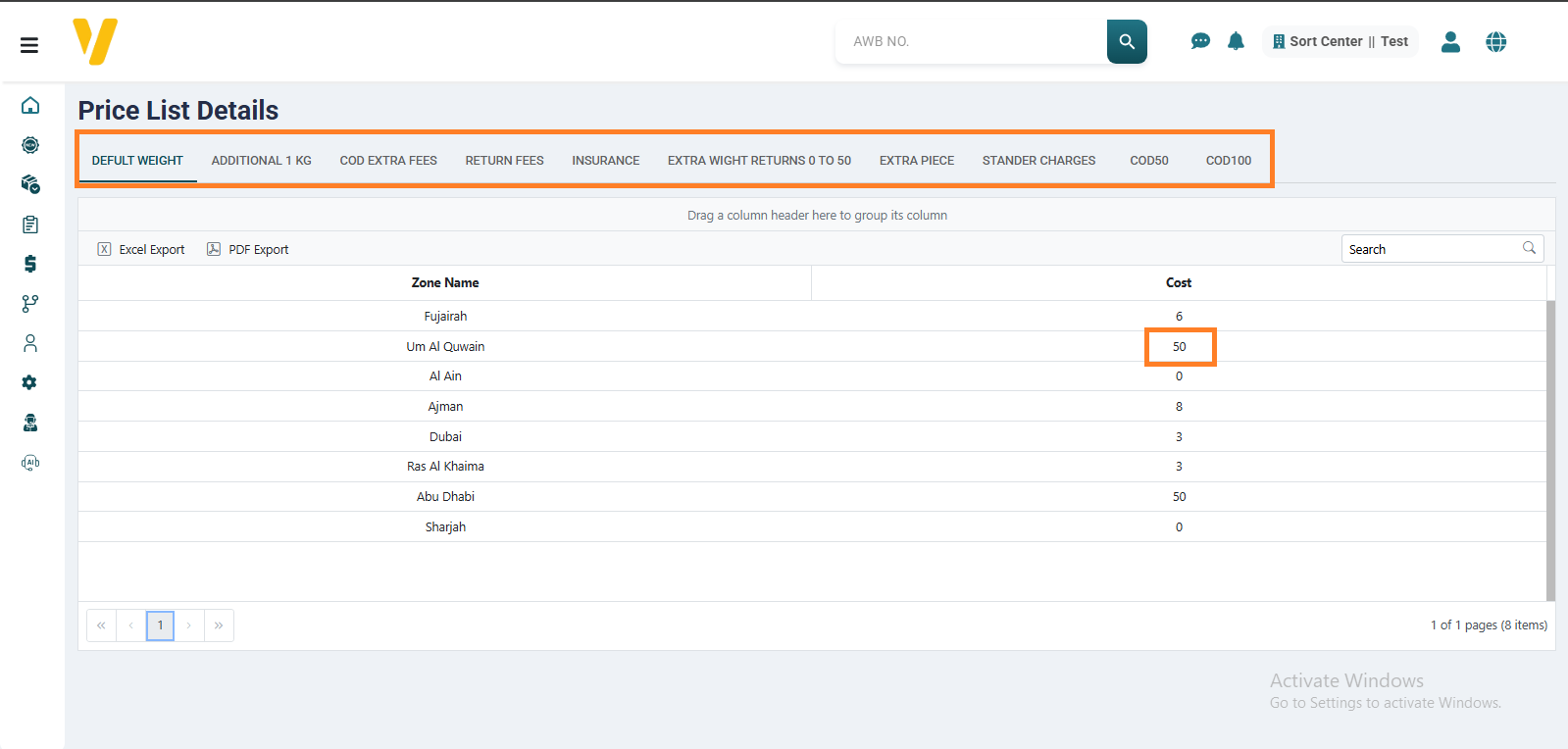
After selecting the service, you can start the pricing process based on zones, which represent the distances from the sender’s area to the destination zones displayed on the page.
To add a price, double-click on the desired zone, then enter the appropriate rate. This allows you to set accurate pricing for each area according to the selected service.
💡 Note: Through this page, you can easily manage and update shipping rates according to each zone and service, ensuring accurate calculation of shipping costs within the system.