Fulfillment Summary
The Fulfillment Summary screen is used to track the full lifecycle of sales orders, starting from warehouse processing until shipment and final delivery.
When an operations employee creates a Sales Order from the Sales Orders screen, the order automatically appears in the Operations Summary screen to begin its warehouse cycle, followed by the shipping cycle.
Warehouse Processing Stages
The Operations Summary screen displays the sequential warehouse stages that the order passes through until it exits the warehouse and enters the shipping process:
-
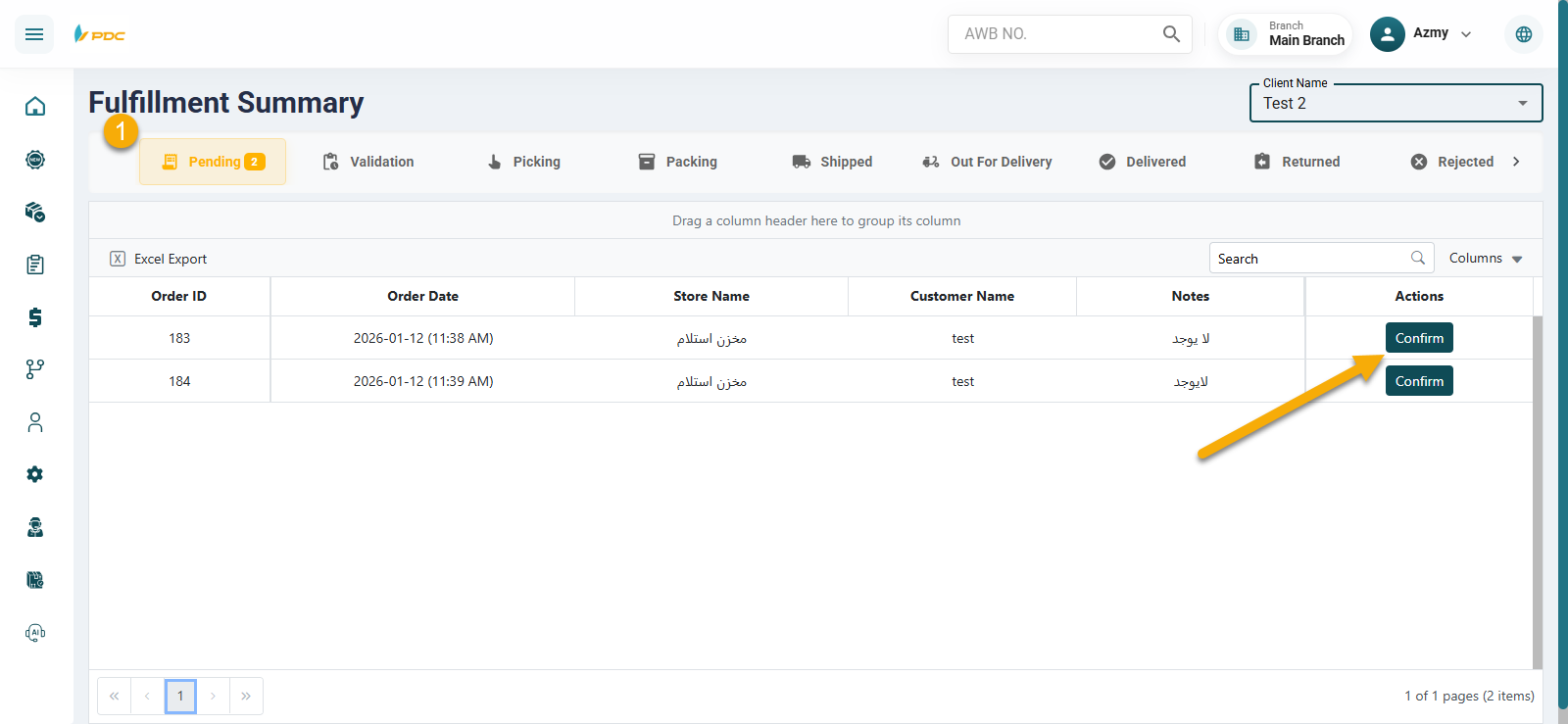
Pending Confirmation
- The sales order initially appears in this stage.
- Once the operations employee clicks Confirm, the order moves to the next stage.
-
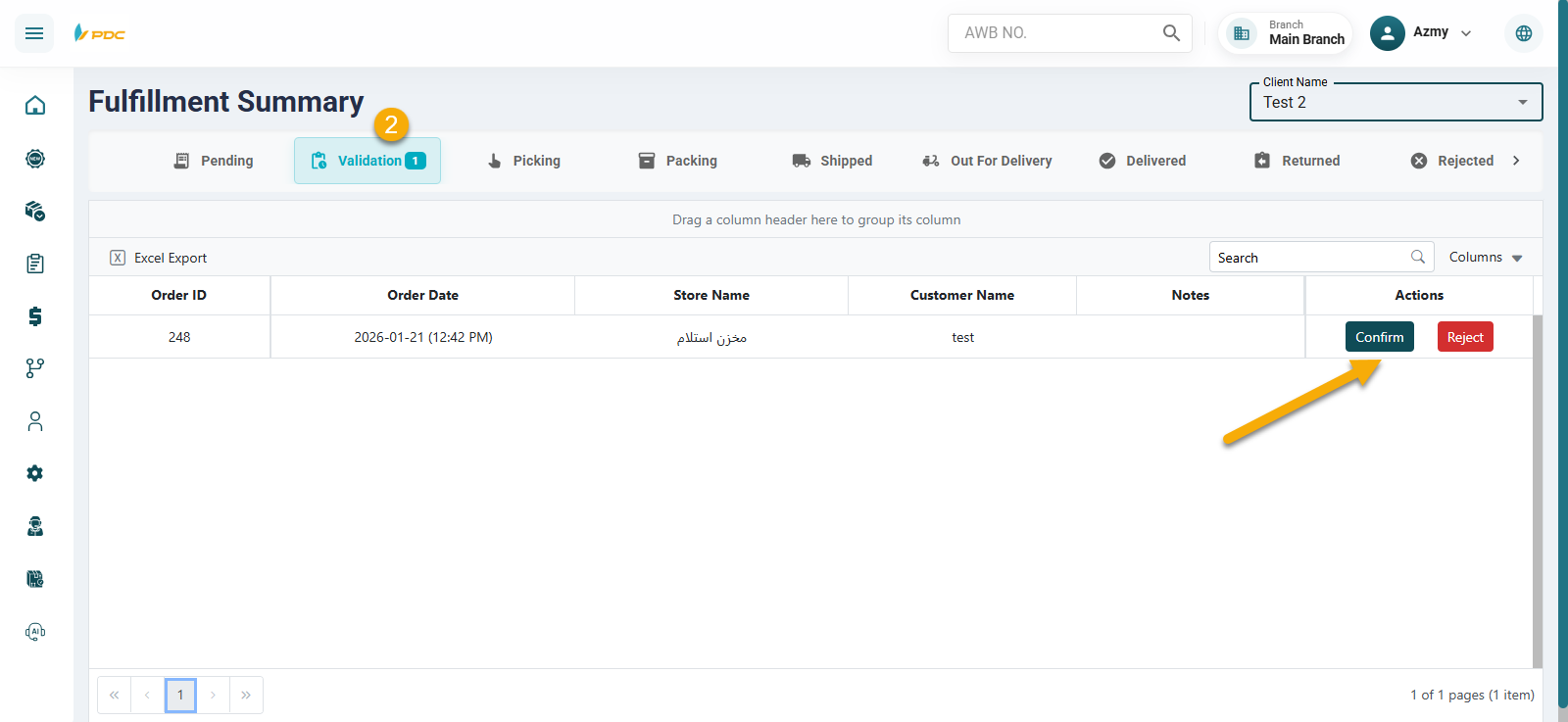
Under Verification
- The order is reviewed and verified.
- After clicking Confirm, the order advances to the next stage.
- If Reject is selected, the order is moved to the Rejected stage within the same screen.
-
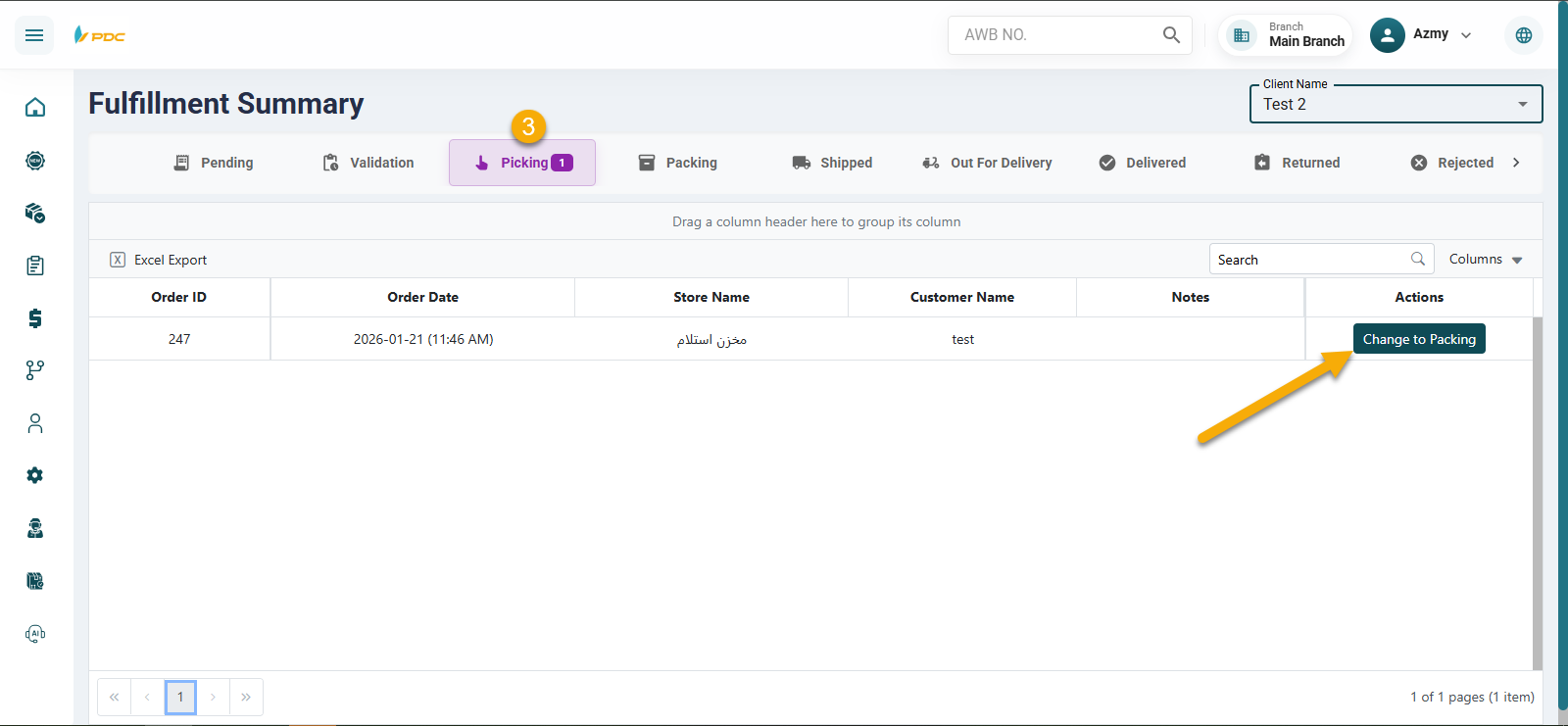
Order Picking
- In this stage, the order items are picked and prepared inside the warehouse.
- Once completed, the employee clicks Move to Packing.
-
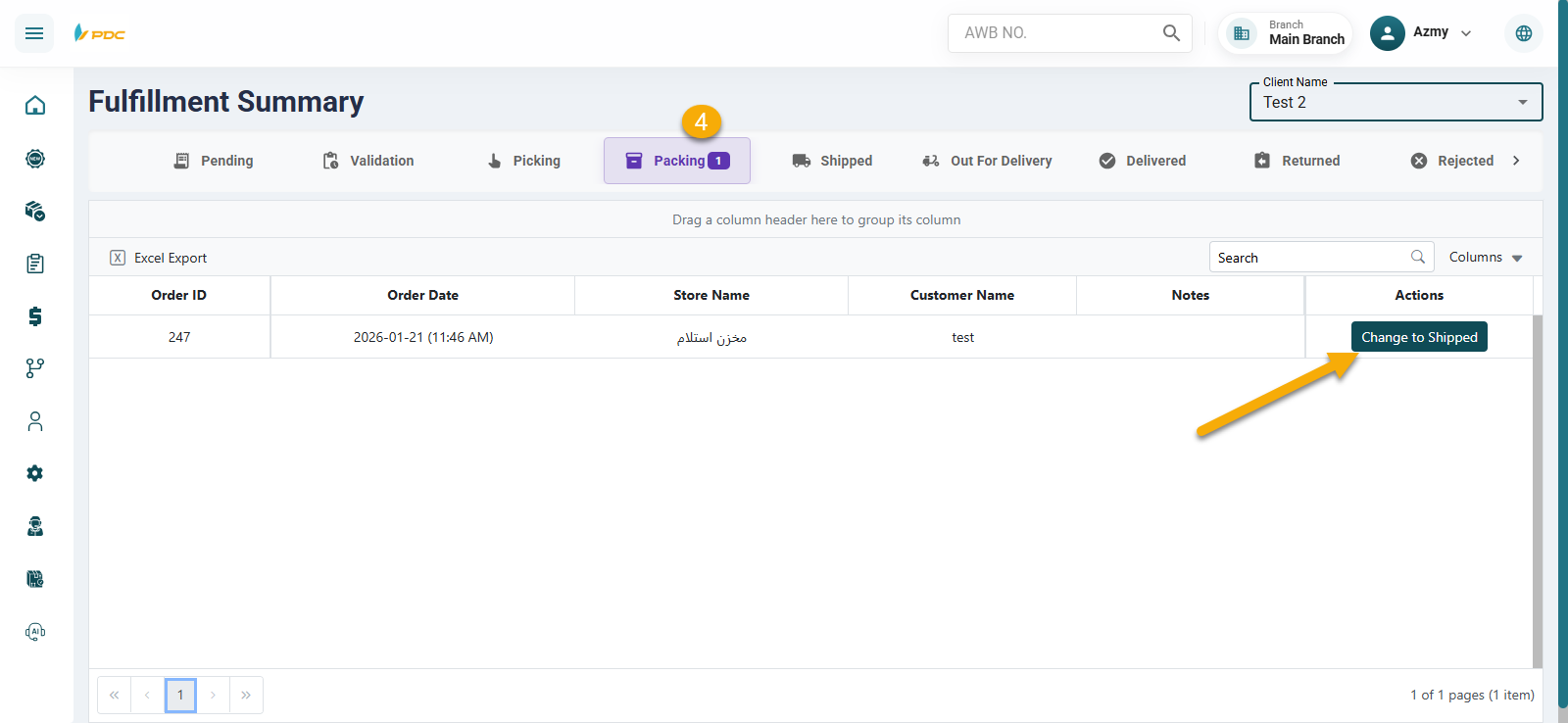
Packing
- The order is prepared and packed for shipment.
- When ready, clicking Move to Shipped completes the warehouse cycle.
Shipping Cycle
After confirming Move to Shipped:
-
A shipment (AWB) number is automatically generated for the warehouse order.
-
The order then enters the shipping cycle, and its shipping stages appear on the same screen, including:
- Out for Delivery
- Delivered
- Not Delivered
- Returned
- Delivery Failed
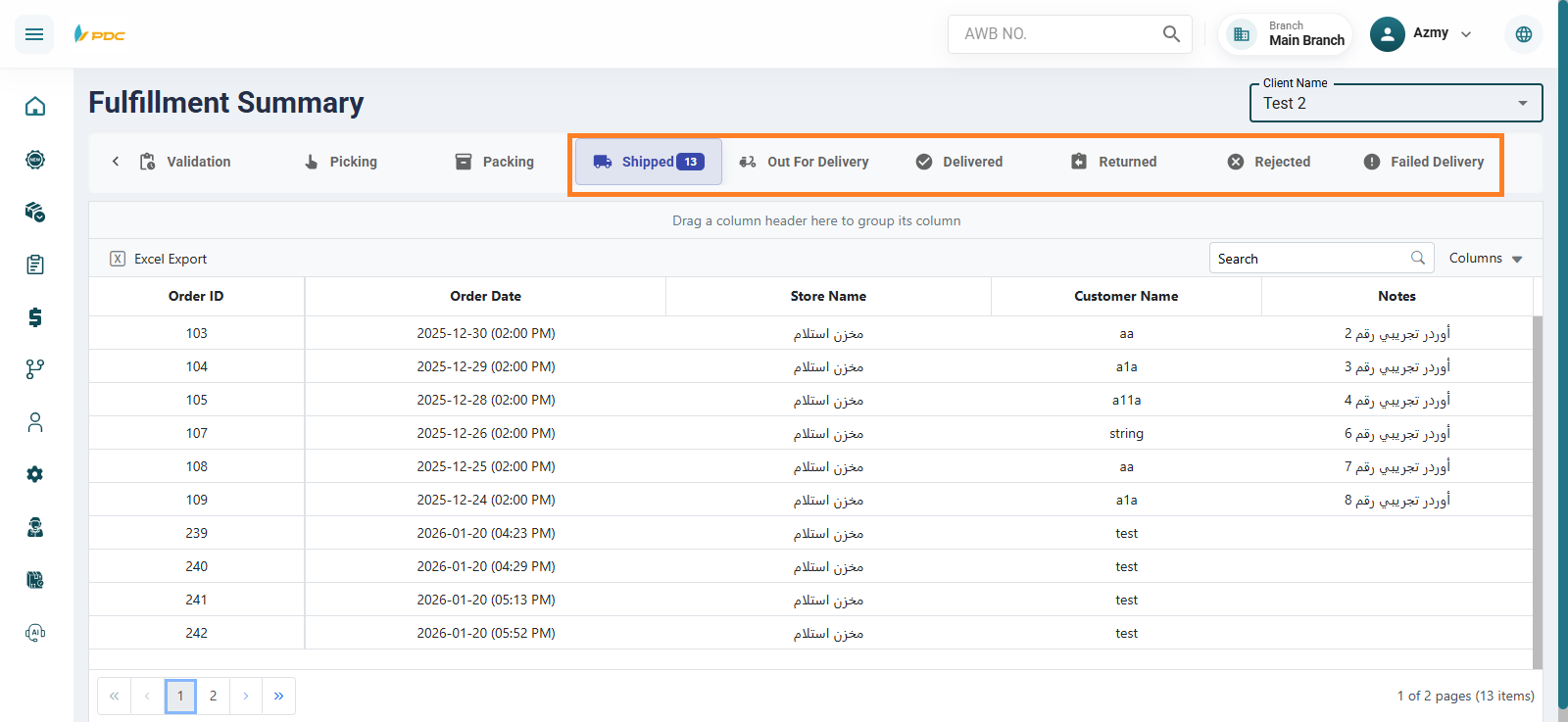
This screen provides full visibility into both warehouse operations and shipping progress, ensuring smooth order tracking from storage to final delivery.