Visit Result
The Visit Result tab allows you to manually record the results of couriers’ visits to customers. You can select shipments to record results for in three ways: by courier, by DRS number, or by AWB numbers.
Open the Visit Result Screen
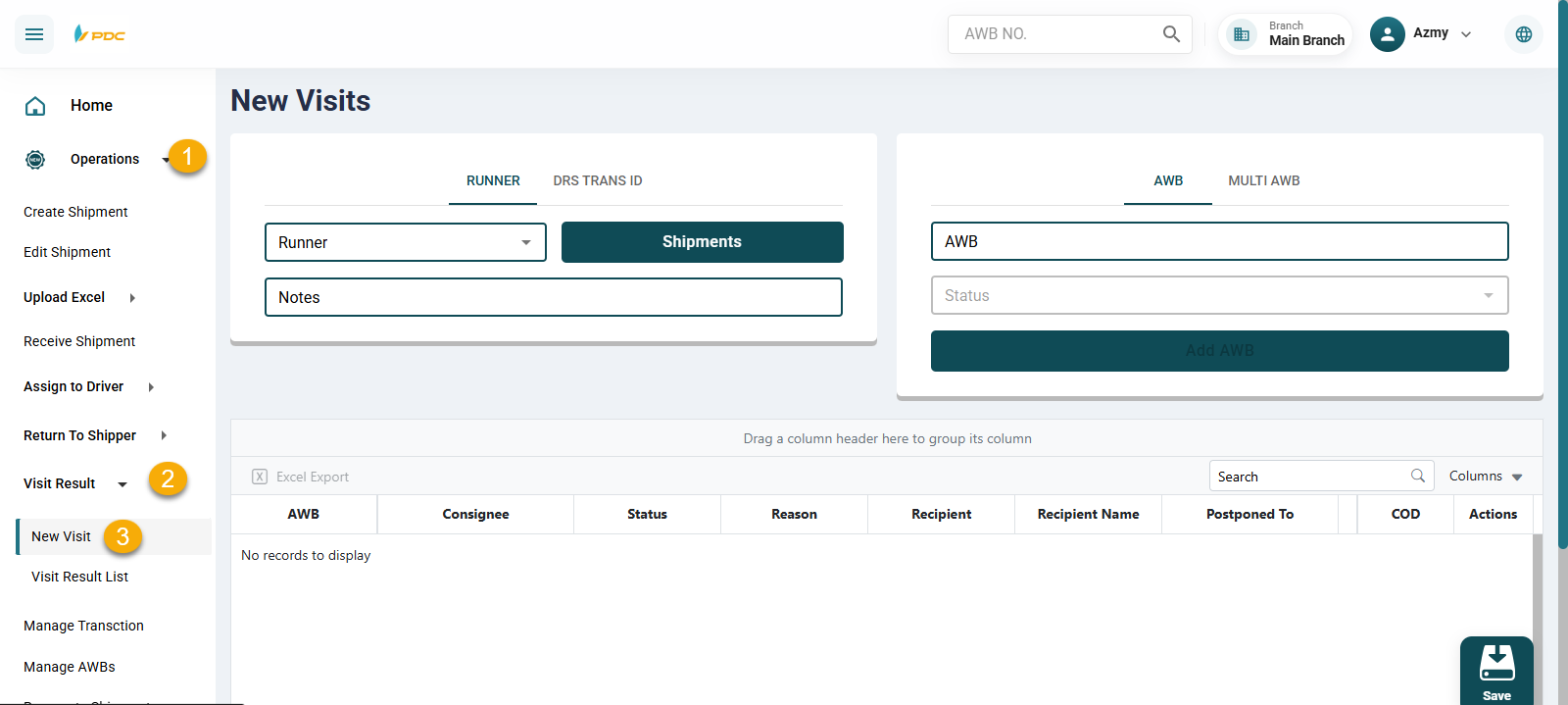
- Open the Operations tab.
- Go to the Visit Result menu.
- Click New Visit.
Selecting Shipments
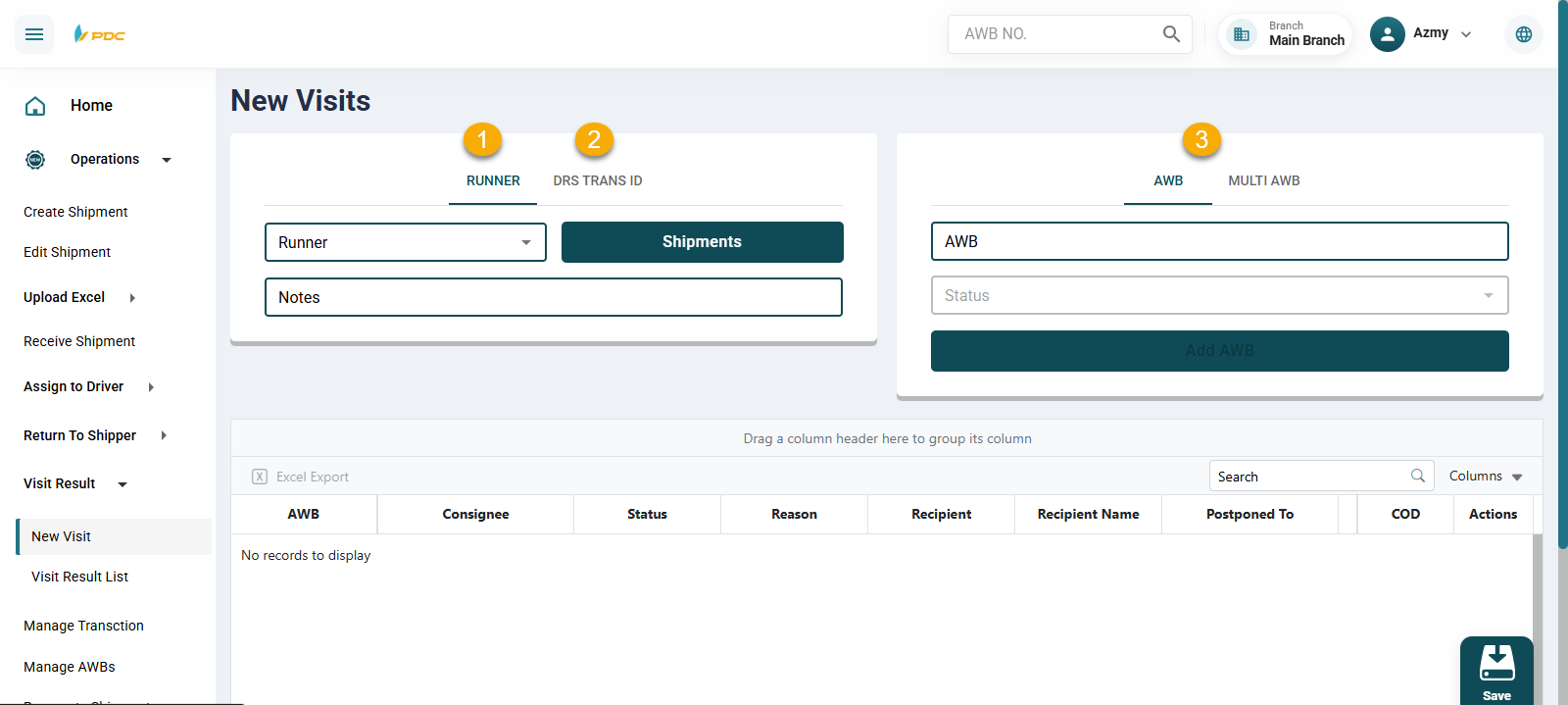
There are three available methods:
-
By Courier (Runner) – Select the courier from the Runner list, then click Shipments to display all their current undelivered shipments. Select the AWBs you want to process.
-
By DRS Number – Enter the DRS number and click Search to show all related shipments. Select the ones to process.
-
By Shipment Numbers – Enter the AWB numbers directly in the AWB field.
Note: Make sure the AWB numbers appear in the Shipments field before continuing.
Choosing a Status
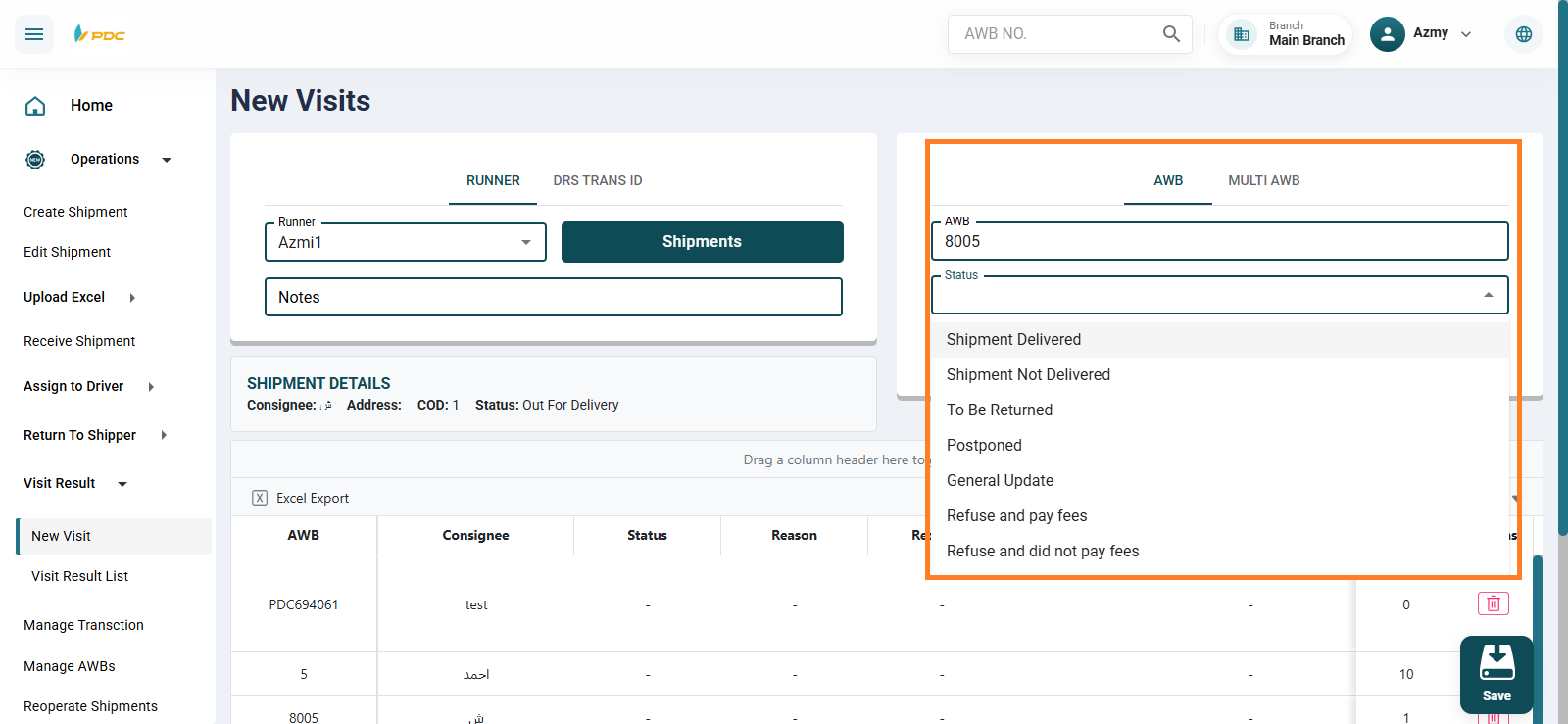
Click Status to select the appropriate delivery status. Each status comes with its own related fields:
- For example, if you select Delivered, you will be asked to enter recipient details.
- If you select Not Delivered, you will be asked to provide a failure reason.
The chosen status will be applied to all shipments included in the process.
Shipment Delivered Status
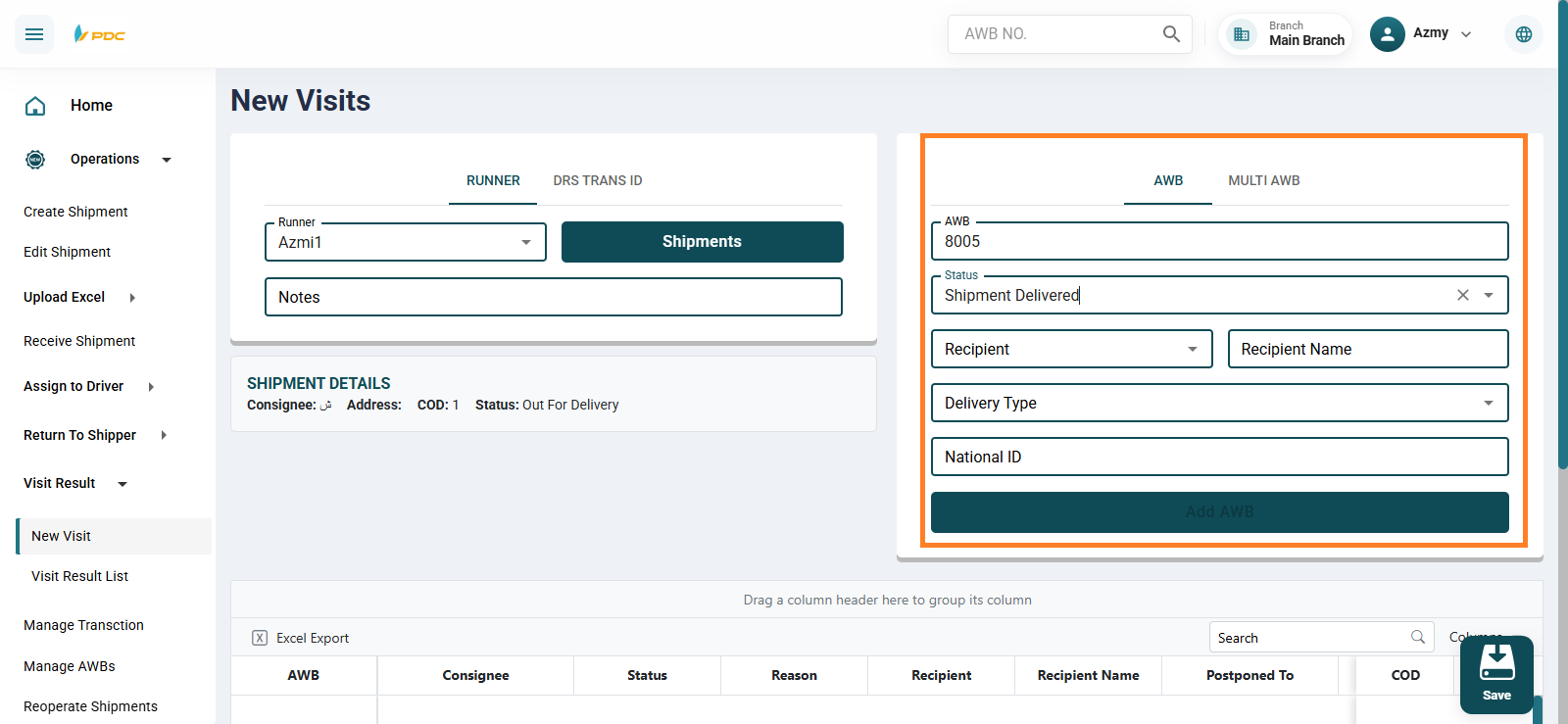
Fields include:
- Recipient (Required) – configured in Settings → Recipient Categories
- Recipient Name (Required)
- Delivery Date
- Delivery Time
- Recipient National ID
Other Statuses
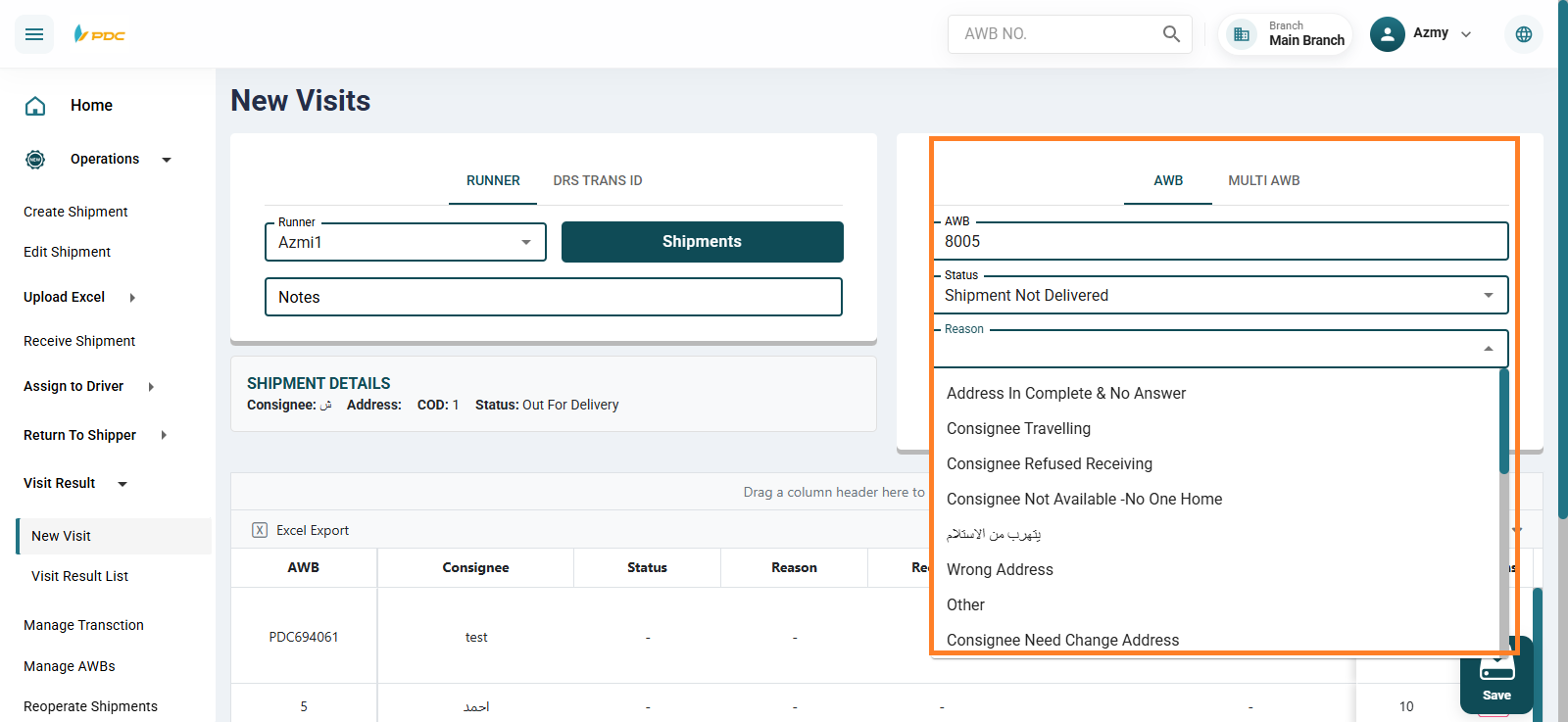
Depending on the selected status:
- Shipment Not Delivered – Opens the Reasons screen.
- Postponed – Opens the Reasons screen with an extra Postpone Until field.
Saving Visit Results
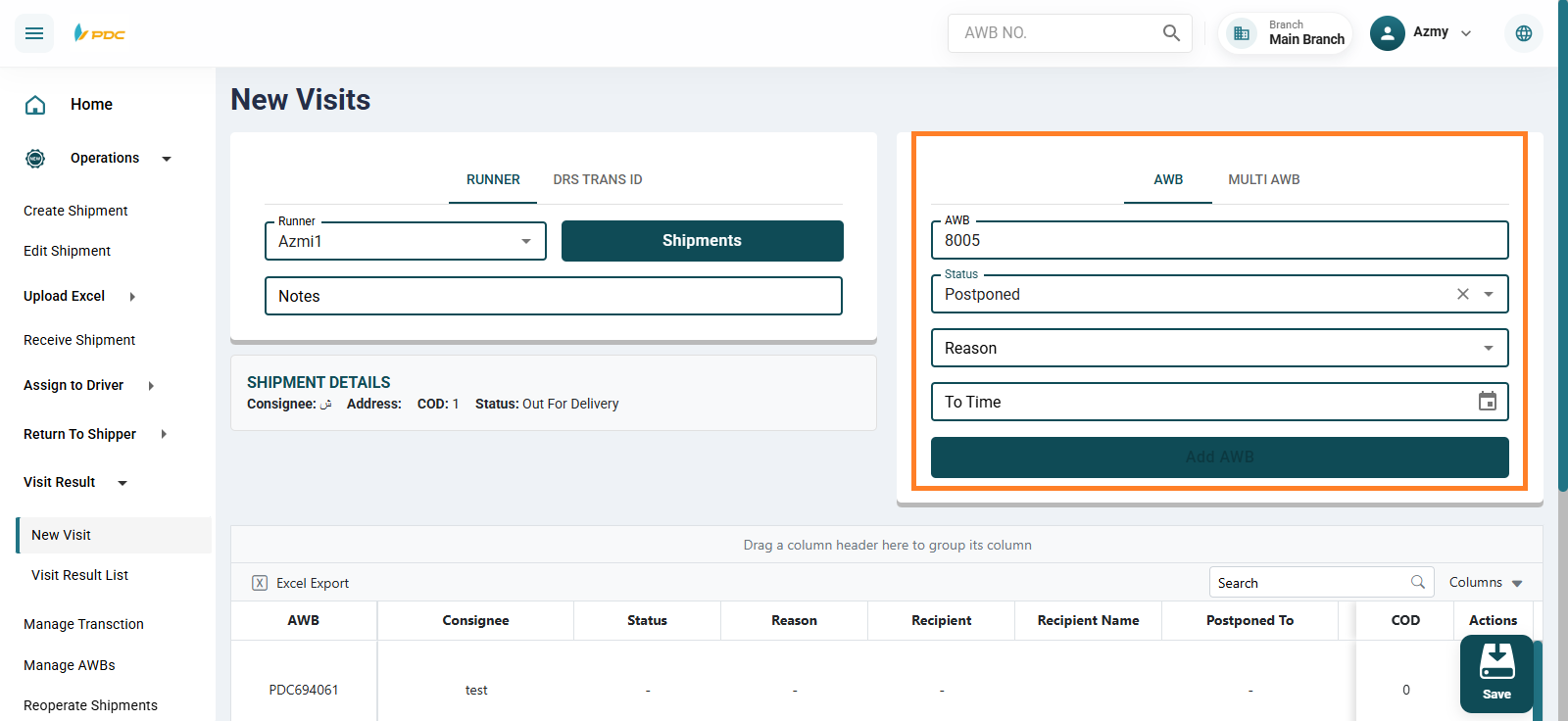
- Click Shipments to confirm the AWBs in the table.
- Click Save.
Posting Results
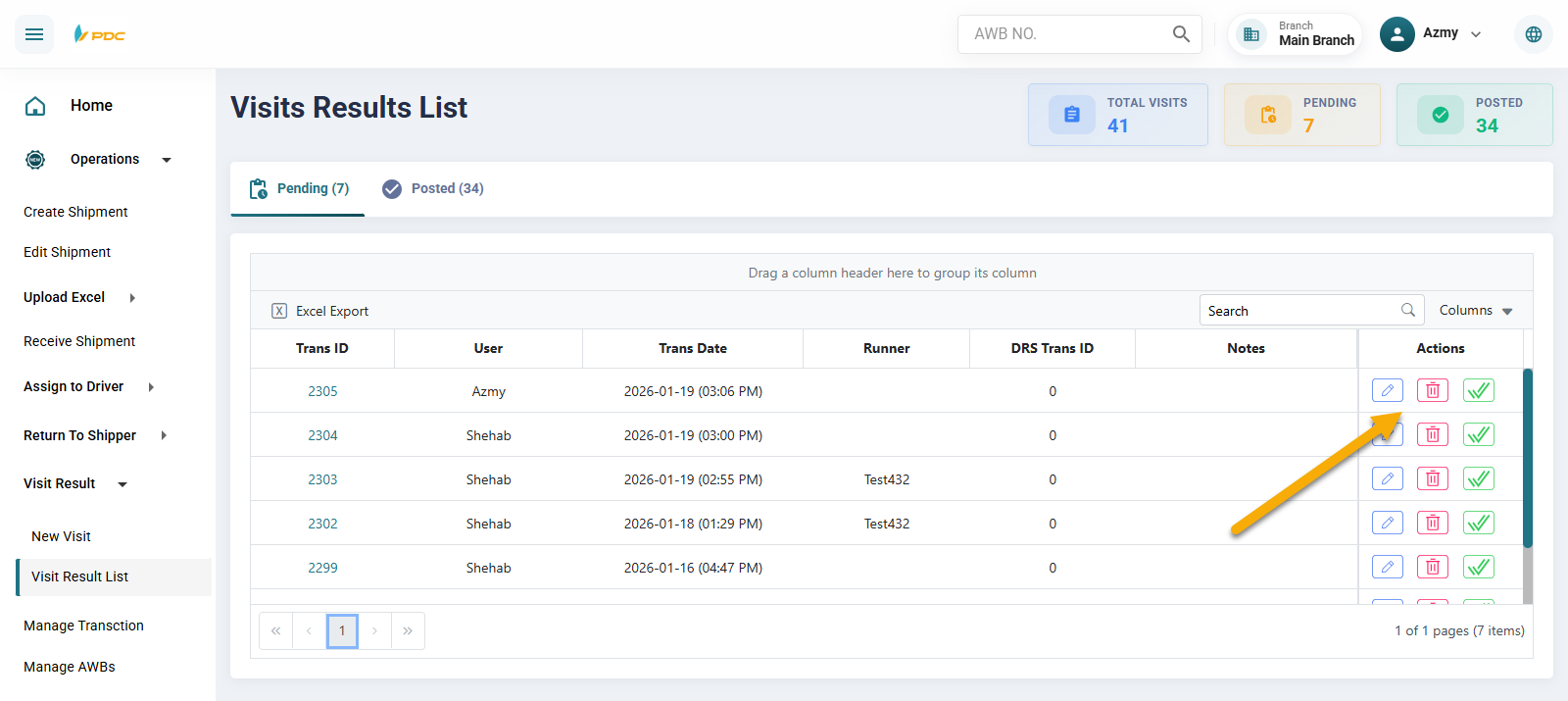
- After saving, results move to the Visit Results list (Pending).
- Filter by courier, then click the checkmark in the Actions column, and click Post.
Viewing Posted Results
All finalized visit results will appear in the Visit Results list under the Posted tab.