Step 2: Fill in the Excel File
After downloading the Excel sample, the next step is to enter the shipment data into this template — with as many rows as you need. The important thing is to make sure each field is entered correctly and in its designated column.
Getting Started
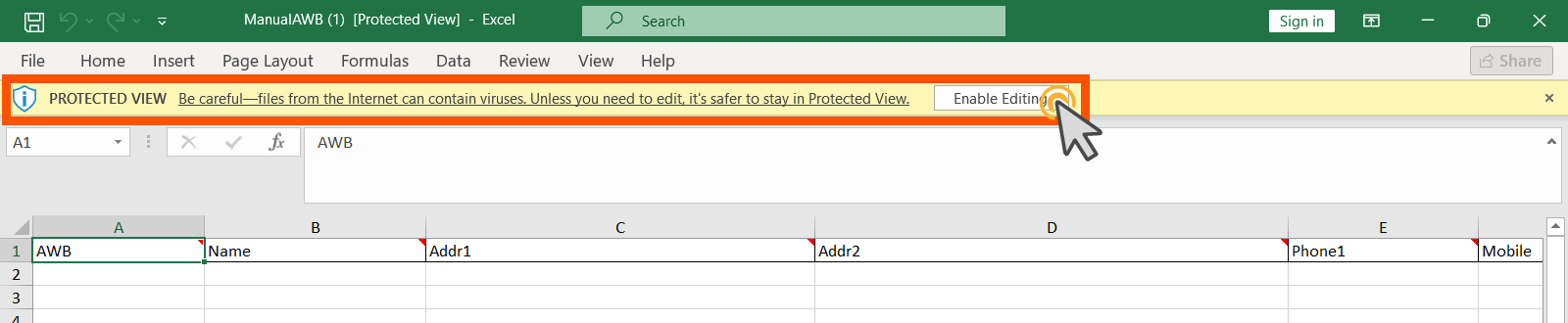
When you first open the Excel sample file, it may appear in Protected View. Click "Enable Editing" at the top to start entering your data. (No further action is required.)
Built-in Field Instructions
You will notice a small red triangle in the top-right corner of each column. When you hover over it, you’ll see hints that explain the type of data required in that field.

These notes serve as built-in guidance to help you avoid common errors.
Important Notes
-
Fields highlighted in red are mandatory fields and must be filled in to complete the process successfully.
-
Governorate and City can be selected from the dropdown list, which helps to:
- Simplify data entry
- Reduce input errors
- Ensure accurate location selection
✅ After filling in all the required fields, you’re ready to move on to the next step.